

A project is a job you bill and spend against, such as a contract, a site or a client engagement. You create it once, then tag sales invoices, purchase bills and journal entries to it. SmartLedger adds them up so you can see what you've billed against the contract and spent against the budget.
Create the project
- Go to Sales → Projects and click New project.

- Enter the Project Name.
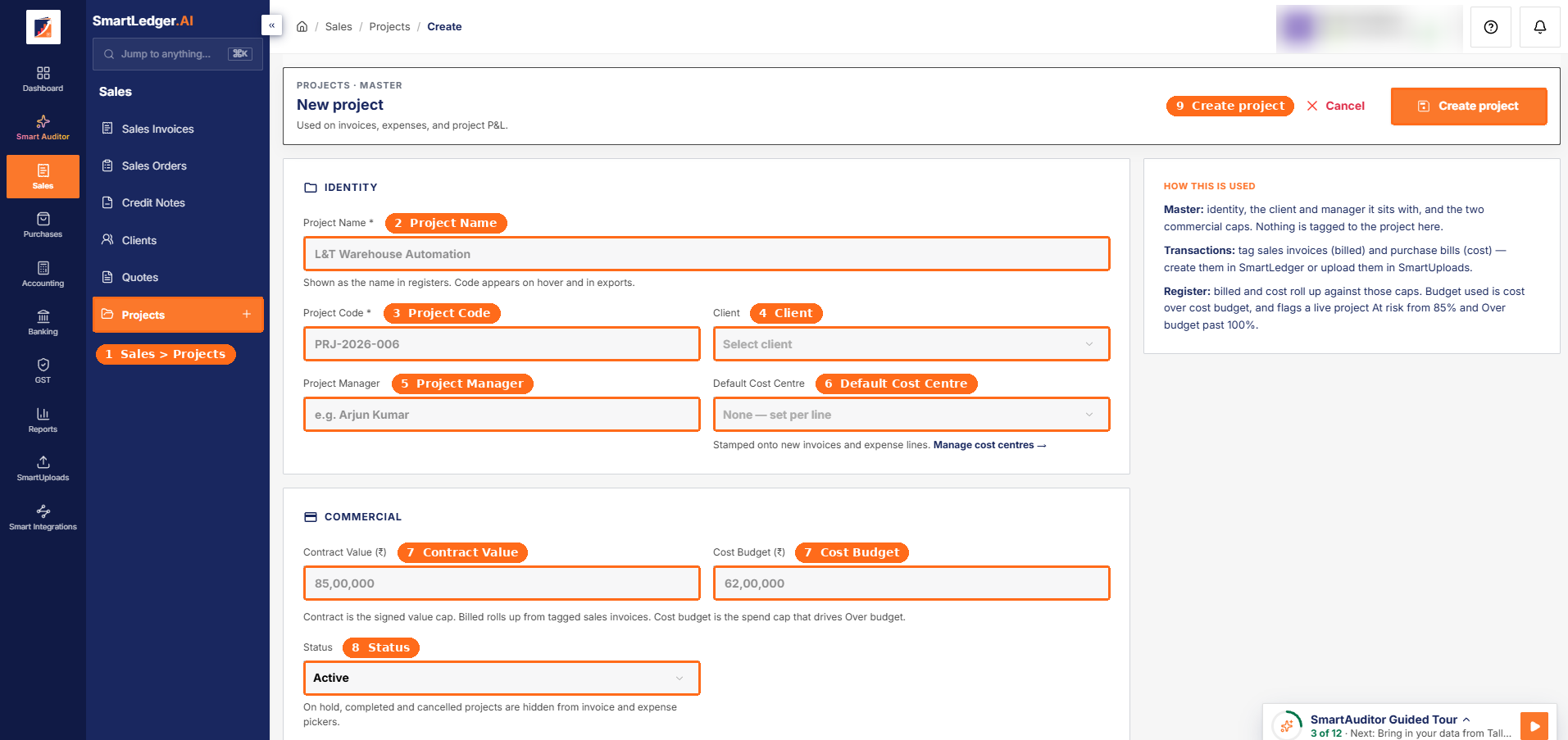
- Enter a Project Code, for example PRJ-2026-006. It's saved in capital letters.
- Pick a Client if the project is for one. Leave it as No client for internal work such as R&D or overheads.
- Add a Project Manager if you track one.
- Choose a Default Cost Centre, or leave it as None — set per line.
- Under Commercial, enter the Contract Value and the Cost Budget.
- Leave Status as Active.
- Click Create project.
You can also click the + next to Projects in the sidebar to open the same form.
What the fields mean
- Project Name and Project Code — both are required and must be unique in your company. The name shows in lists; the code appears on hover and in exports.
- Default Cost Centre — stamped onto new invoices and expense lines tagged to the project. Click Manage cost centres to add one.
- Contract Value — the signed value of the job. What you bill on tagged sales invoices is measured against it.
- Cost Budget — your spending cap for the job. Cost from tagged purchase bills is measured against it to show how much of the budget is used.
Both money fields are optional. If the cost budget is higher than the contract value, the form warns that the project is budgeted to run at a loss, but still lets you save.
Create a project from an invoice
You don't have to leave an invoice or bill to add a project. Open the Project picker in the Link & Categorize card and choose Create a Project. A New Project panel opens with the same details. Click Create Project, and the new project is selected on the document.
Change a project later
Open the project and click Edit project, change what you need, and click Save changes. You can also choose Edit from the actions menu on the project's row in Sales → Projects.
To change only the status, open the row's actions menu and use Update Status. The statuses are:
- Active — the job is running.
- On hold — paused.
- Completed — finished.
- Cancelled — called off before it finished.
If you mark a project Completed without a contract value or cost budget, the form warns that the register can't work out margin or budget used for it.
Tips
- Enter the cost budget as the spend cap you want to be warned against. Active projects are flagged At risk from 85% of the budget and Over budget past 100%.
- A project that is on hold, completed or cancelled can still be picked on a document, so a late bill can still be tagged to it. The picker shows its status.
Related articles
Was this article helpful?
Related Articles
Creating a purchase order
Raise a purchase order to a vendor before their bill arrives, send it as a PDF, and turn it into a purchase invoice later.
Importing a bank statement
Upload a bank statement as a PDF, spreadsheet or image, check what SmartLedger read, and add its lines to your books ready to reconcile.
Linking invoices to a project and tracking it
Tag sales invoices, purchase bills and journal entries to a project, then track billing against the contract and cost against the budget.
Using SmartUploads templates
Download a SmartLedger-ready Excel template, fill in your invoices, payments or journals, and upload it to bring many records in at once.
Bulk importing invoices from a spreadsheet
Upload an Excel or CSV file of invoices, payments or journals, check how its columns map, fix flagged rows and create everything in one go.
Reviewing, approving and rejecting uploads
Check what SmartLedger read from each upload, then approve it to book it or reject it. Covers sales invoices, bills, bank statements and bulk actions.